
Start with Diagnose with AI#
When an error popup or error screen appears, click Diagnose with AI. Halofy opens a diagnostic chat with the error report and relevant app, provider and environment details already attached.
The agent investigates the available evidence and explains what failed and what to try next. Follow its suggested steps, or ask it to apply a fix. Diagnosis starts with investigation; changes require your instruction. You need a connected project and a working AI provider to start the chat.
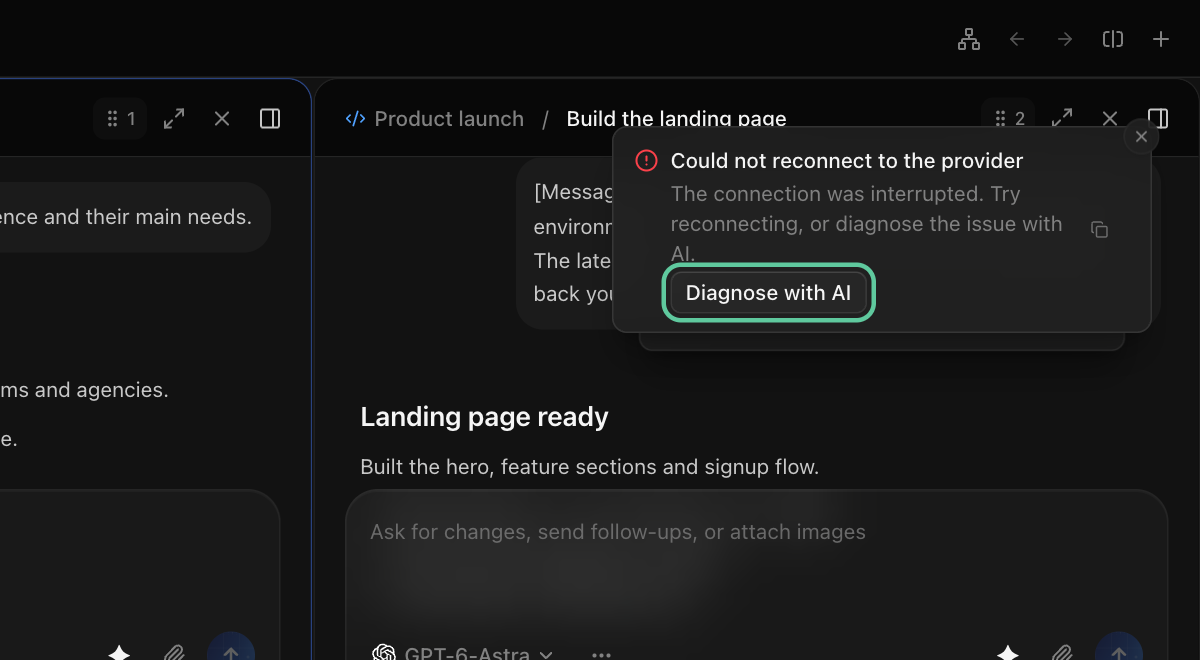
02An agent won’t start#
Check its connection in Settings → AI services on the computer hosting the project. Confirm that the provider is enabled, installed and signed in. Follow the highlighted provider setup.
03A device is unavailable#
Confirm the host is awake and Halofy is running, then check the connection in Linked devices. Device connection guide.
04A file or preview is missing#
Ask the agent to deliver the file as an artifact. For a local website, confirm its server is running on the expected host and port.
05Still stuck?#
If the diagnosis does not resolve the issue, Halofy support is available. Share the error message, your app version, what you were doing and the steps you already tried. Include the diagnostic findings so support can continue from there.