A useful way of working, ready to repeat#
A playbook gives an agent a method to follow: what you need to provide, the steps to take, and how to check the result. Use one for a recurring job such as preparing a customer handover, cleaning a contact list or turning meeting notes into a report. You do not need to write code.
For example, ask: “Use our customer handover playbook with these notes. Prepare a draft for my review.” Supply the requested inputs and check the finished result before sharing it.
Published team playbooks appear alongside your assigned skills. Your agent can read a matching playbook and follow it in the current conversation. This supplies instructions; it does not automatically connect accounts, start work or change the setup of your other conversations.
Find a saved or published playbook#
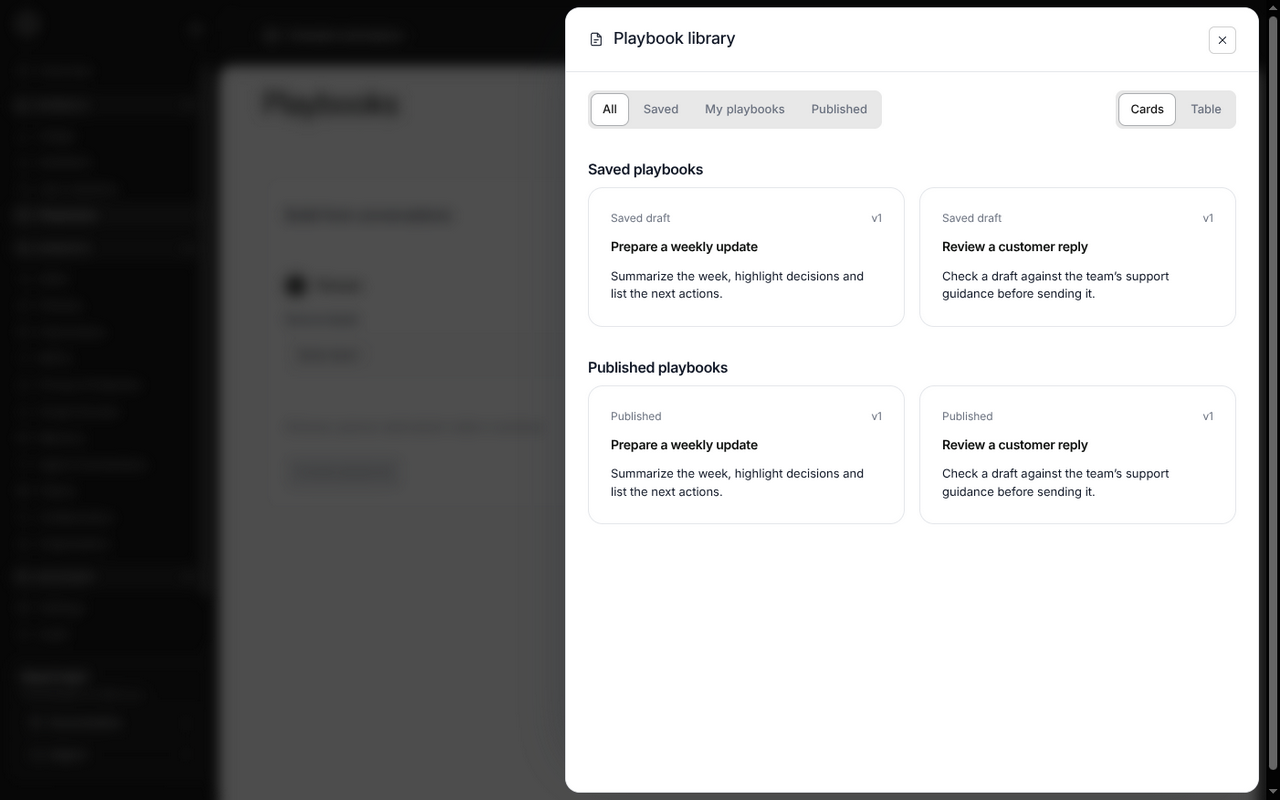
- In the Console, open Signals → Playbooks, then Playbook library.
- Use Cards for a quick overview or Table to compare names, status and versions.
- Choose Saved for your drafts or My playbooks for your account’s available playbooks. Managers also have a Published filter. All brings the available groups together.
- Open a title and read when to use it, what it needs and its current status. A saved draft or an item awaiting review is not a published team workflow.
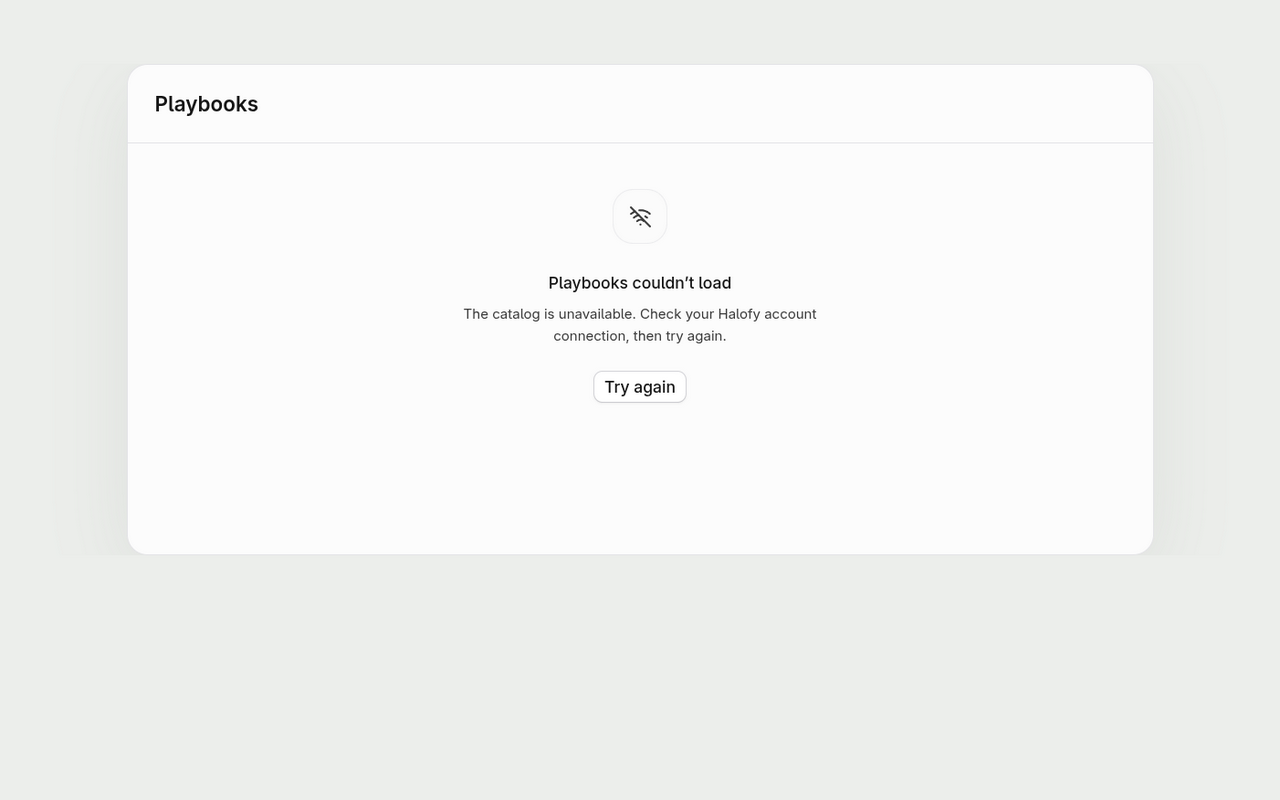
What you can see depends on your workspace and role. If the option is missing, ask your workspace owner to check your access and the installed app version.
Turn a successful chat into a playbook#
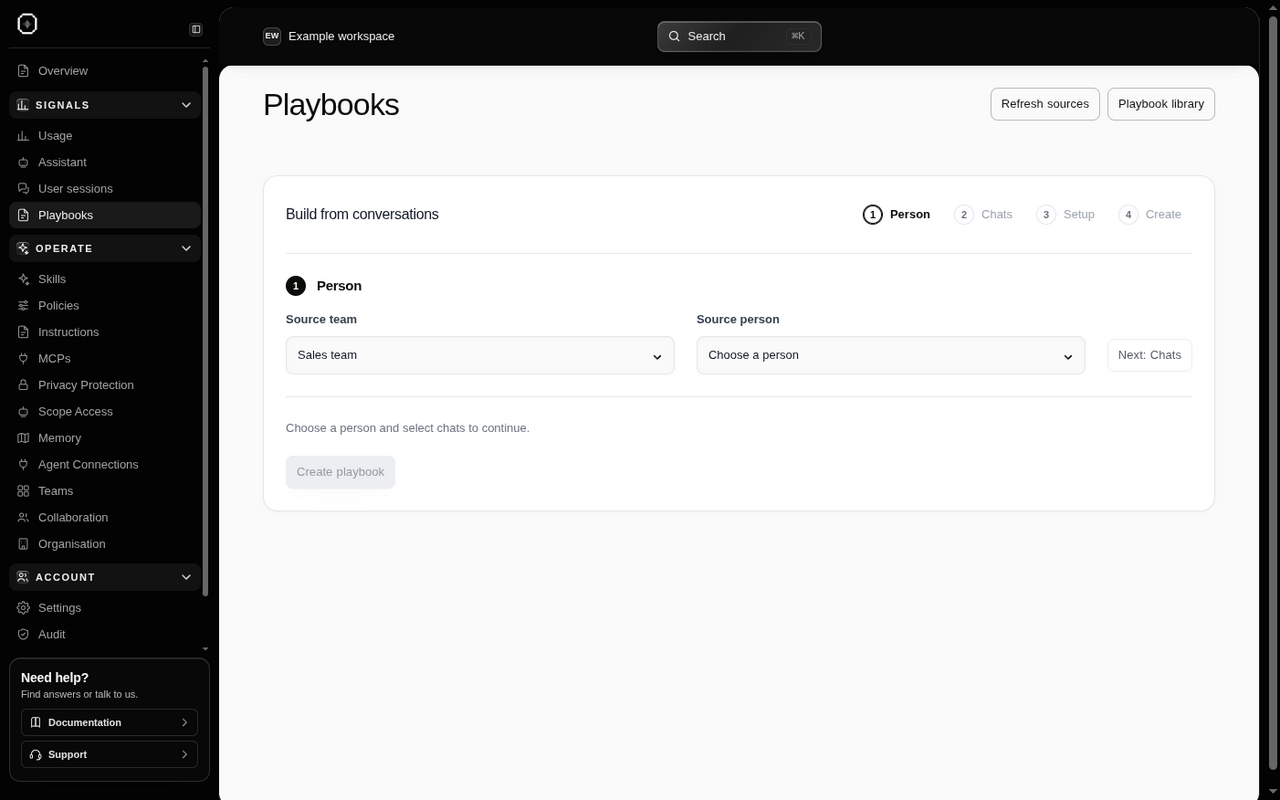
- Open Signals → Playbooks and choose the source team. Select a person if you want to work from their accessible chats.
- Search and select up to 12 chats. Work tags help you find a topic. Chats marked Power user workflow appear first by default; you can change the order.
- Review the source coverage and any missing setup. When offered, choose the source computer and use Refresh setup to request its current supported settings.
- Decide whether to keep Include this team’s current instructions, policies and skills selected. It is on by default. Including them makes a larger package; leaving them out keeps the recipient on their own team setup.
- Choose Create playbook, then open a generated suggestion. Check the inputs, steps, checks, recovery advice, outputs and supporting sources. Save the draft when it reflects the method you want others to follow.
If you do not select individual chats, creation uses the latest retained findings available in the selected scope. A chat must have usable captured evidence; choosing it does not recover missing messages or expired content.
A current setup describes what is available on the source computer now. It does not prove which settings an older chat used. Connections listed in the setup are notes, not working accounts: the recipient still needs their own authorized connection.
Review the lesson before sharing it#
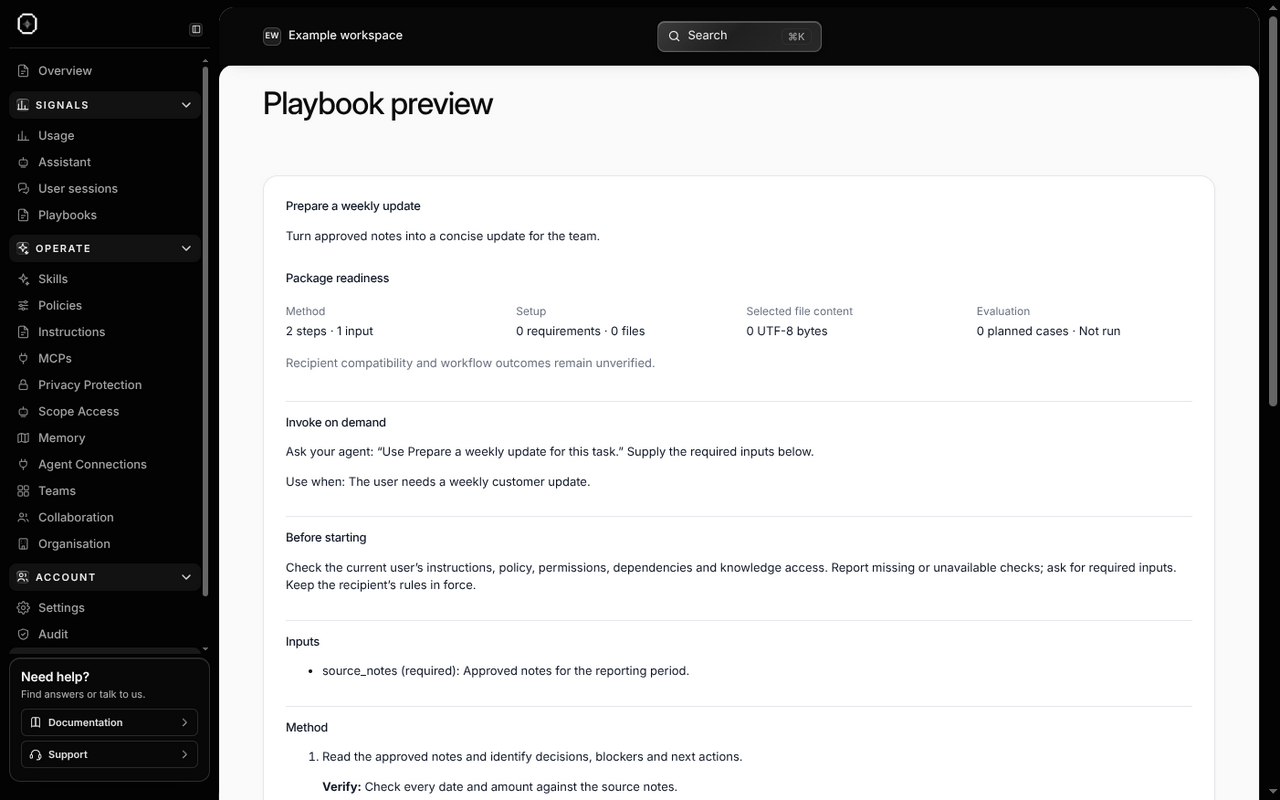
Read the examples and corrections behind the draft. A suggestion based on one example, incomplete evidence or wording that judges a person can remain available with a review note. Treat that note as a reason to inspect and improve the draft.
- Keep the lesson about the work: what changed, why it helped and when it applies.
- Replace a source customer’s name, file name or one-off choice with an input for the next user where appropriate.
- Check that the steps say what a successful result looks like, and what to do when a check fails.
- Keep sending, publishing, deleting and other consequential actions within the current user’s request.
Review with Assistant, where available on the draft, can suggest whether to publish, revise or reject it and explain why. Its reply does not edit, approve or publish the draft. Saving a private draft does not share it with the team; generated drafts still follow the applicable publication and manager review process.
Supporting examples describe checks to try. They are not proof that the workflow has already succeeded for another person.
Choose how to use the playbook#
Follow it in this chat: ask your agent to use the named playbook and provide its inputs. This is the everyday option. Your current account access, team rules and provider tools still apply.
Start a guarded run: use this optional mode when you want a separate task conversation prepared with the playbook’s approved setup and tool restrictions. It requires a compatible local provider, computer and playbook. Written rules still need review; a guarded run does not guarantee the agent follows every sentence.
A reference-only playbook can be read and followed in the current chat, but cannot start a guarded run. A partial setup can run with the content that was collected when the remaining checks pass. Read the listed omissions first: the missing files or settings have not been recovered.
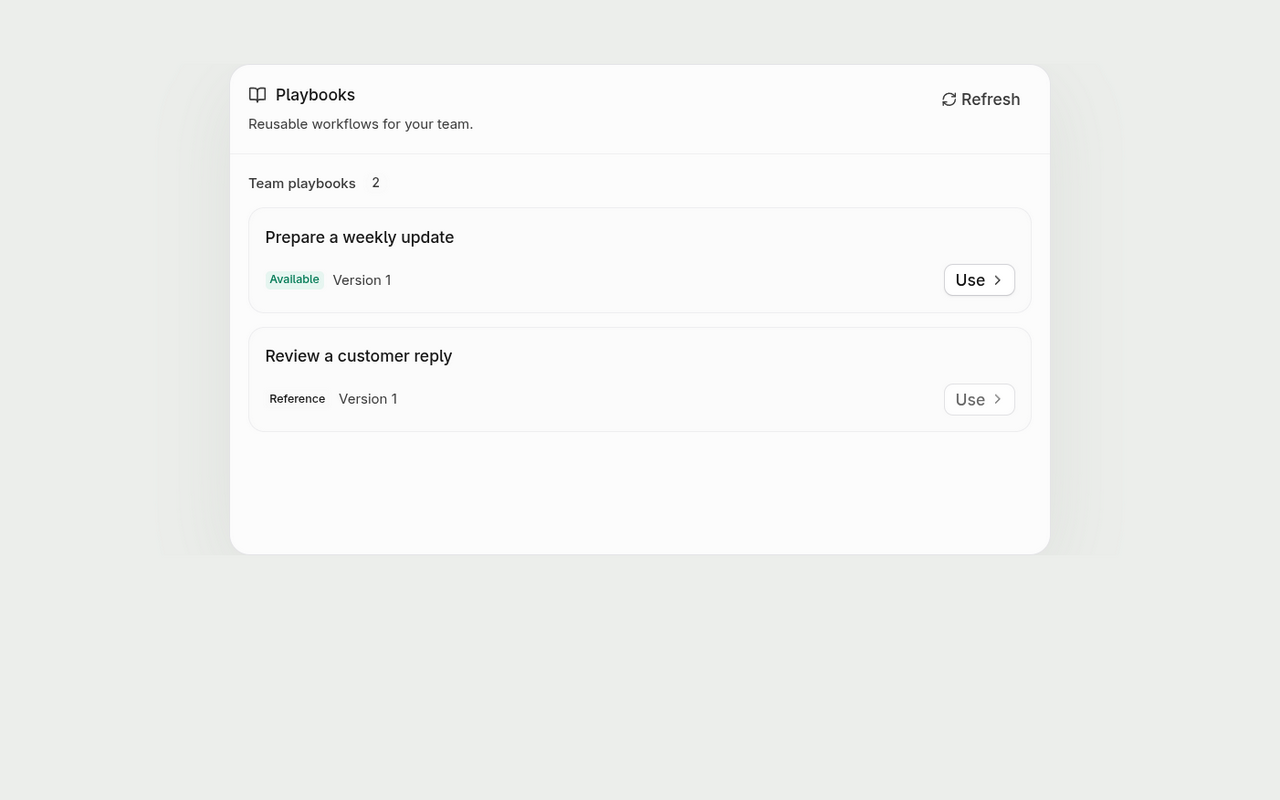
Start and finish a guarded run#
- In the Workstation conversation, open the side panel and choose Playbooks from Open a surface or the + menu.
- Find the entry in Team playbooks and choose Use.
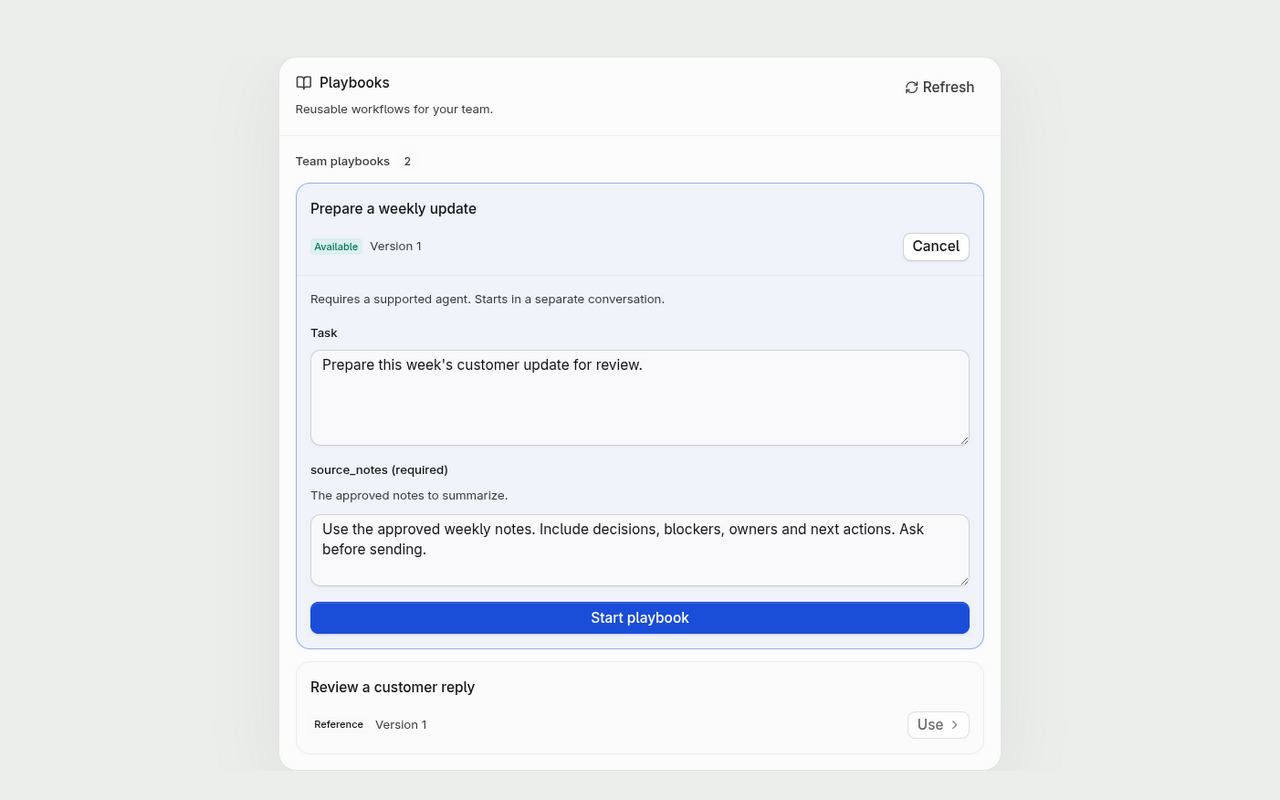
- Enter your task and the required inputs, then choose Start playbook. Setup can take up to a minute. Cancel closes the form without starting it.
- Work in the new conversation and review its output. Your organization’s and team’s rules remain in force, and any required accounts must already be connected with your own access.
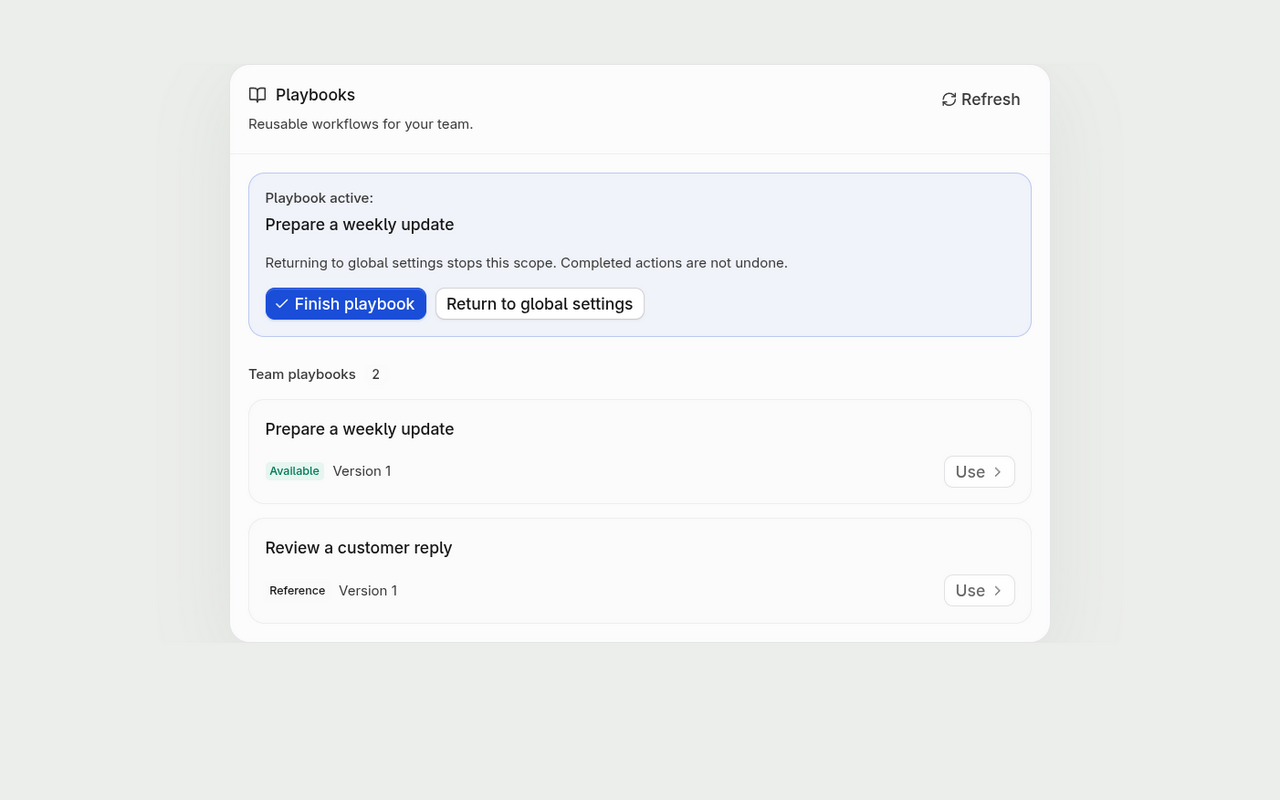
- Choose Finish playbook or Return to global settings to close the run and return to the original conversation.
Closing the run does not undo completed file changes or actions already accepted by another service. The closed playbook conversation cannot resume with broader tools. After restarting the host, start a new run if you need to continue.
If a playbook will not start#
- Not listed: check the selected team and whether the playbook is published for it. Reopen or refresh the panel after publication.
- Awaiting review: check the item’s approval state with your manager. A library entry alone does not mean it is ready to run.
- Missing input or connection: supply the requested information or connect the named service using your own account. The author’s credentials are never copied.
- Provider or computer unsupported: update Halofy and follow the compatibility message. Ask the agent to follow the playbook as guidance in the current chat if a guarded run is unavailable, provided your team’s rules permit it.
- Remote cleanup pending: the local run has stopped, but the remote service has not confirmed cleanup. Reconnect before relying on remote confirmation.
Guarded playbooks and protected text have separate compatibility requirements. Passing one check does not establish support for the other.