
01Describe the workspace you want#
Select the ✦ Edit workspace button in the composer, then tell your agent what you want to add or change. The button attaches Halofy’s customization capability so the agent can build for the app’s supported extension surfaces.
For example: “Build a sidebar widget showing this session’s token usage.” The agent can create the widget, load it into your workspace, and adjust it as you continue the conversation. You do not need to rebuild Halofy.

02Example: a live token tracker#
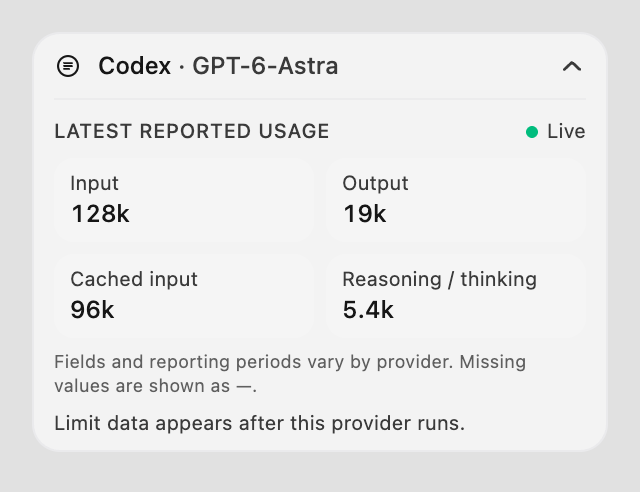
The Token Tracker widget keeps the active session’s reported input, output, cached-input and reasoning usage in the sidebar. It follows the current chat, so you can see the numbers without leaving the work.
This is an example of a custom widget built on Halofy’s extension APIs. Available usage fields depend on the provider; estimates and missing values are distinguished.
03Example: your own growth dashboard#
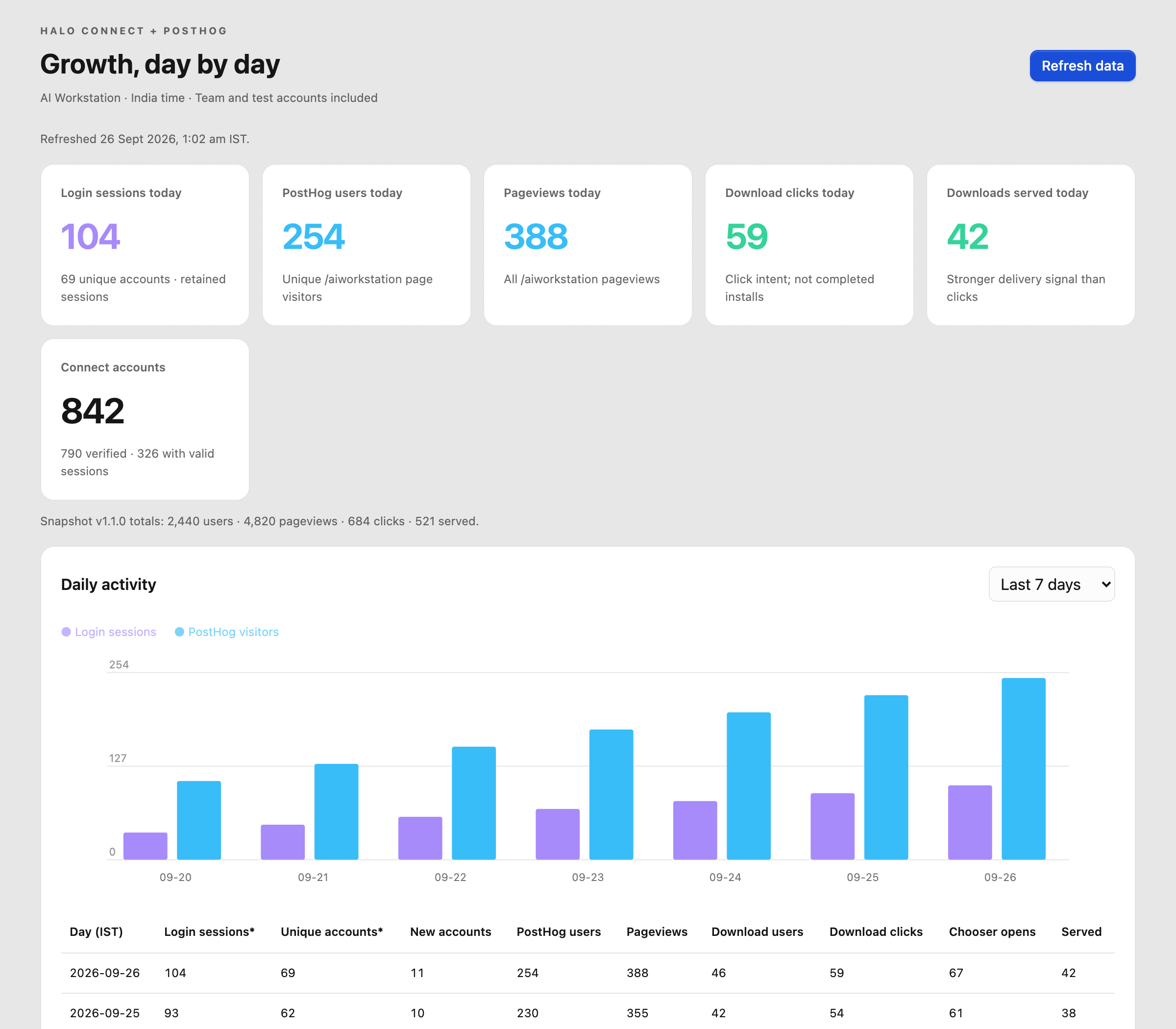
Halo Growth is a custom dashboard that brings sign-ins, website visits and download activity into Halofy. A dashboard like this can show the business metrics you use alongside the agents working on that business.
Ask for the view and calculations you need, connect the relevant data sources, then iterate on the result in conversation. The dashboard uses those connections; it does not come with access to your analytics accounts.
04Keep adapting it as your work changes#
Customizations can add sidebar widgets, full pages, commands, shortcuts and themes. Use Settings → Extensions to manage them. You can ask the agent to revise a widget, add a filter or connect another supported source.
Build around your recurring work: a launch checklist, a campaign dashboard, a research queue or a session-usage panel. The result is a workspace that puts the information and actions you use within reach.
Desktop and web support these UI extensions on the connected host. Mobile uses its own interface.